---
title: How do I use Wingfield?
description: Learn how to record your games with Wingfield, save highlights, and challenge critical on-court moments in instant replay.
image: https://help.wingfield.io/hubfs/Preview%20Images/headerHelpcenter.jpg
---
[Skip to content](https://help.wingfield.io/en/player-start-guide#main-content)
- [English](https://help.wingfield.io/en/player-start-guide)
- [Deutsch](https://help.wingfield.io/player-start-guide)
English
Show submenu for translations
[](https://help.wingfield.io/en?hsLang=en)
Open main navigation
Close main navigation
- - [English](https://help.wingfield.io/en/player-start-guide)
- [Deutsch](https://help.wingfield.io/player-start-guide)
English
Show submenu for translations
- [Contact us](mailto:service@my-wingfield.com)
[Contact us](mailto:service@my-wingfield.com)
Hey! How can we help you?
- There are no suggestions because the search field is empty.
1. [Wingfield Help Center](https://help.wingfield.io/en?hsLang=en)
2. [First steps with Wingfield](https://help.wingfield.io/en/first-steps-with-wingfield?hsLang=en)
3. [Before Your First Wingfield Session](https://help.wingfield.io/en/first-steps-with-wingfield?hsLang=en#before-your-first-wingfield-session)
September 10, 2026
# How do I use Wingfield?
## Learn how to record your games with Wingfield, save highlights, and challenge critical on-court moments in instant replay.
### **What is Wingfield?**
Wingfield helps you understand your game better and improve it in a targeted way. The intelligent camera system records your matches and gives you videos, highlights, and detailed statistics about your game.
**With Wingfield, you have the following options:**
- **Highlight Tagging:** Save your best moments instantly as short clips.
- **Video Challenge:** Replay close situations right on the court screen.
- **Match Recordings:** Analyze your technique on video and improve faster.
Has your club installed **Wingfield AI Pro**? Then you can go a step further:
- **Stats & Analytics:** Show you after each match exactly where you can focus to improve.
- **Drills & Collections:** A wide range of exercises support you in targeted training. Direct feedback helps you understand where you really stand and how you improve, session after session.
- **Challenges & Rankings:** Compete against other players from your club in individual drills.
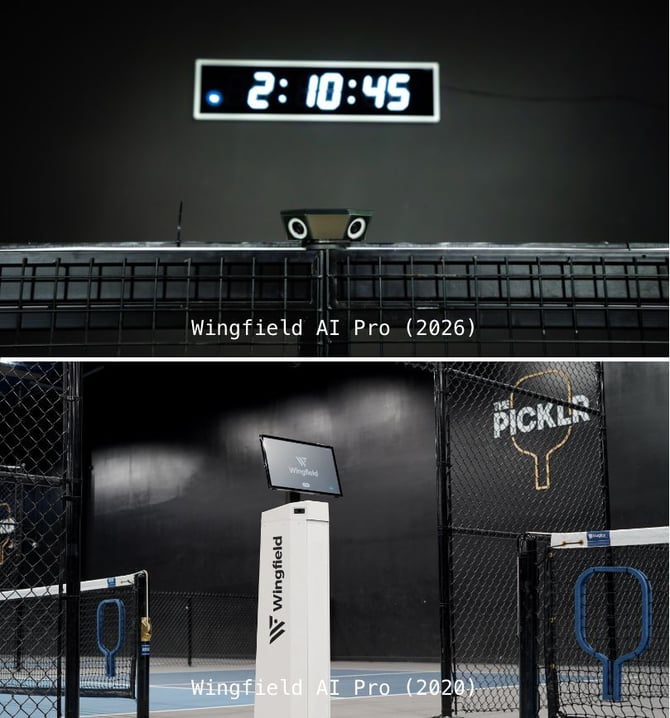
**☝🏻By the way:** You can tell whether Wingfield AI Pro is installed on a court by this camera.
### **Do I need an account to use Wingfield?**
No, not necessarily — but it makes things easier. You can use the Highlight feature and Challenges without an account too, and download your clips afterwards via QR code.
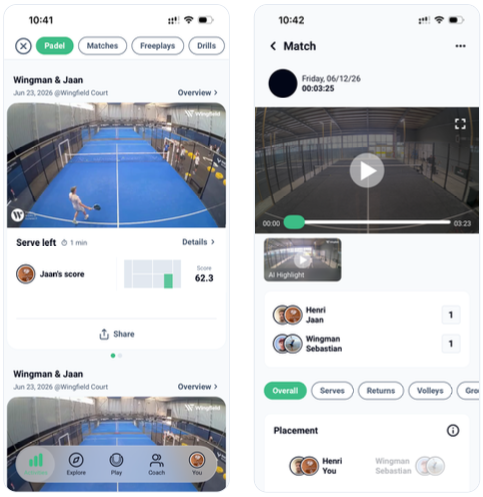
With a free Wingfield account, your full sessions — video, highlights (and stats, where applicable) — are saved and synced automatically. You'll find them under Activities in the Wingfield app. From the feed, you can access your sessions and share them directly.
### 
**💡 Tip:** Create a Wingfield account if you play regularly — that way you never miss a session and can track your progress over time.
**[🔗 Download the Wingfield app now](https://www.wingfield.io/en/products/app)**
**⚠️ Caution:** If your club's booking system is connected to Wingfield, you no longer need to log in manually with your Wingfield account.
Every booked session is linked automatically to the players in the booking — we call this Soft Log-in. If you use the same email address for your Wingfield and booking-platform accounts, your sessions land directly in your profile with no further action needed.
### **How do I save highlights with Wingfield?**
1. Tap *Save* on the court screen to secure a 60-second clip
2. Navigate to the Highlight gallery via *All Snippets* in the top right of the screen
3. Select all the clips you want to download
4. Tap *Download Selected Snippets*
5. A webpage opens in your browser where you can save your videos
**☝🏻 By the way:** If you logged in with your Wingfield account beforehand, you can skip steps 1–5 and simply access your session in the Wingfield app via the Activities tab.
### **Where do I find my highlights in the Wingfield app?**
Your highlights appear in two places in the Wingfield app:
- In your *profile*, you'll find all self-tagged highlight clips as well as automatically generated ones (only possible with Wingfield AI Pro), in a clear gallery.
- In the *Activities* tab, you'll also find the videos of all your workouts in the session feed.
### **How do I challenge a close call with Wingfield?**
Use *Challenge* when you want to review a situation again on the court screen.
1. Tap *Challenge* on the court screen to bring up the last 2 minutes of play
2. Pause the video and navigate in the video player to the point you want to replay
3. Use the *Loop* function to define a section that plays on repeat. Use the slider to set the *start* and *end point* in the small menu
4. Tap *Speed* to play the loop in slow motion
☝🏻 **By the way:** If you were logged in and had started a match recording, it keeps running in the background during your Challenge. Your match continues to be recorded.
### **What do the play modes on a Wingfield AI Pro court mean?**
⚠️ **Caution**: The following information applies only to Wingfield AI Pro courts. Ask your club which Wingfield systems are available there.
- **Match**: Structured match recording. You enter the score at the end of each game and get team-based stats.
- **Free Play**: Open play without match structure, with the same team-based stats.
- **Drill Mode**: Target drills for different shot types. Example: you set a target zone on the screen, Wingfield measures the accuracy and speed of your shots and gives you a score from 0–100.
### **What stats do I get on a Wingfield AI Pro court?**
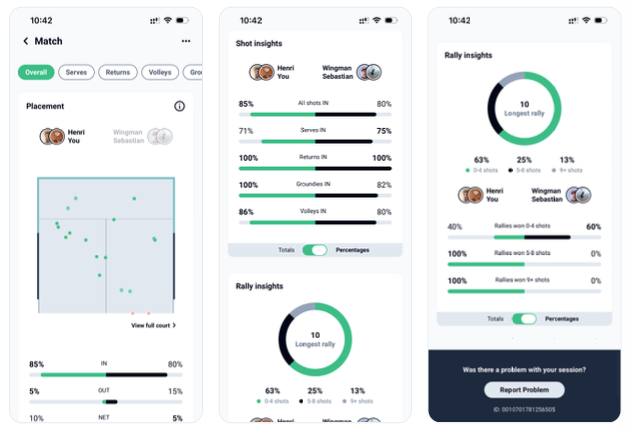
Free Play and Match share the same analytics core, always as a direct team comparison:
- **Placement Map** – where every shot bounced, with IN / OUT / NET percentages per team
- **Shot Insights** – IN-percentages or totals for all shots, serves, returns, groundies and volleys
- **Rally Insights** – longest rally plus the rally-length distribution
- **Per-Shot Deep Dives** – dedicated tabs for serves, returns, volleys and groundies with zone analysis, speeds, and net clearance
### **What does a Match add on top of Free Play?**
- **Score** – entered by the players at the end of each game
- **Rallies won by length** – how many rallies each team actually won, not just how many were played
- **Downloads** – grab your highlights, or the full match video as a download link by email, usable on any device
- **Stats export** – to Excel / CSV
#### **Who can see my sessions?**
Only you — everything is private by default.
Other players only see your sessions once you follow each other, or once you have a coach–player connection with them. A connected coach sees the stats of your sessions in their Coach Corner, can download the video for review, and can log you in on court when you train together. Find more information [🔗 in this article](https://help.wingfield.io/en/insights-follower?hsLang=en).
### Support
**📖 Help center:** [help.wingfield.io](https://help.wingfield.io/en?hsLang=en)
**👥 App Support (for player):** [app@my-wingfield.com](mailto:app@my-wingfield.com)
- [First steps with Wingfield](https://help.wingfield.io/en/first-steps-with-wingfield?hsLang=en#main-content)
- [Before Your First Wingfield Session](https://help.wingfield.io/en/first-steps-with-wingfield?hsLang=en#before-your-first-wingfield-session)
- [On the court](https://help.wingfield.io/en/first-steps-with-wingfield?hsLang=en#on-the-court)
- [About the Wingfield app](https://help.wingfield.io/en/about-the-wingfield-app?hsLang=en#main-content)
- [👤 Account & roles](https://help.wingfield.io/en/about-the-wingfield-app?hsLang=en#account-roles)
- [💬 App FAQ's](https://help.wingfield.io/en/about-the-wingfield-app?hsLang=en#app-faqs)
- [📲 Updates](https://help.wingfield.io/en/about-the-wingfield-app?hsLang=en#updates)
- [DUPR](https://help.wingfield.io/en/about-the-wingfield-app?hsLang=en#dupr)
- [Installation](https://help.wingfield.io/en/installation?hsLang=en#main-content)
- [Preparations](https://help.wingfield.io/en/installation?hsLang=en#preparations)
- [Installation Guide - Streaming Camera](https://help.wingfield.io/en/installation?hsLang=en#installation-guide-streaming-camera)
- [Installation Guide - Court Terminal](https://help.wingfield.io/en/installation?hsLang=en#installation-guide-court-terminal)
- [Installation Guide - Dual Tracking Camera](https://help.wingfield.io/en/installation?hsLang=en#installation-guide-dual-tracking-camera)
- [Troubleshooting](https://help.wingfield.io/en/installation?hsLang=en#troubleshooting)
- [Maintenance & Upgrades](https://help.wingfield.io/en/installation?hsLang=en#maintenance-upgrades)
- [Installation Guide Wingfield Box (Tennis)](https://help.wingfield.io/en/installation?hsLang=en#installation-guide-wingfield-box-tennis)
- [Installation Guide Wingfield Box (Pickleball)](https://help.wingfield.io/en/installation?hsLang=en#installation-guide-wingfield-box-pickleball)
- [Coach Corner](https://help.wingfield.io/en/coach-corner?hsLang=en#main-content)
- [Tools for coaches](https://help.wingfield.io/en/coach-corner?hsLang=en#tools-for-coaches)
- [Coaching with Wingfield](https://help.wingfield.io/en/coach-corner?hsLang=en#coaching-with-wingfield)
- [Blueprints for Drills](https://help.wingfield.io/en/coach-corner?hsLang=en#blueprints-for-drills)
- [Club resources](https://help.wingfield.io/en/club-resources?hsLang=en#main-content)
- [Financing & refinancing](https://help.wingfield.io/en/club-resources?hsLang=en#financing-refinancing)
- [Marketing](https://help.wingfield.io/en/club-resources?hsLang=en#marketing)
- [Admin dashboard](https://help.wingfield.io/en/club-resources?hsLang=en#admin-dashboard)
- [Operations](https://help.wingfield.io/en/club-resources?hsLang=en#operations)
- [DTB LK-Matches](https://help.wingfield.io/en/dtb-lk-matches?hsLang=en#main-content)
- [Basics](https://help.wingfield.io/en/dtb-lk-matches?hsLang=en#basics)
- [DTB rules](https://help.wingfield.io/en/dtb-lk-matches?hsLang=en#dtb-rules)
- [Match validation](https://help.wingfield.io/en/dtb-lk-matches?hsLang=en#match-validation)
- [Marketing tips for clubs](https://help.wingfield.io/en/dtb-lk-matches?hsLang=en#marketing-tips-for-clubs)
- [FAQ](https://help.wingfield.io/en/faq?hsLang=en)
- [Campaigns](https://help.wingfield.io/en/campaigns?hsLang=en)
- [General](https://help.wingfield.io/en/general?hsLang=en)
[](https://help.wingfield.io/?hsLang=en)
Copyright © 2025, © Wingfield GmbH
```json
{
"@context" : "https://schema.org",
"@type" : "VideoObject",
"caption" : {
"@type" : "MediaObject",
"contentUrl" : "https://help.wingfield.io/media-transcripts/221532282136/en.vtt",
"inLanguage" : "en",
"name" : "en Captions"
},
"contentUrl" : "https://4338206.fs1.hubspotusercontent-na1.net/hubfs/4338206/video_assets/221532282136/inherited/web_optimized.mp4",
"dateModified" : "2026-09-10T08:27:57.977Z",
"description" : "Learn how to use Wingfield without logging in. Save highlights and challenges instantly, review your best moments, and download videos easily via your personal QR code.",
"duration" : "PT58.725S",
"height" : 720,
"name" : "Wingfield without login",
"thumbnailUrl" : "https://4338206.fs1.hubspotusercontent-na1.net/hubfs/4338206/Wingfield%20without%20login.m4v/medium.jpg",
"uploadDate" : "2026-09-10T07:52:26.572Z",
"width" : 1280
}
```
```json
{
"@context" : "https://schema.org",
"@type" : "VideoObject",
"caption" : {
"@type" : "MediaObject",
"contentUrl" : "https://help.wingfield.io/media-transcripts/221575582895/en.vtt",
"inLanguage" : "en",
"name" : "en Captions"
},
"contentUrl" : "https://4338206.fs1.hubspotusercontent-na1.net/hubfs/4338206/video_assets/221575582895/inherited/web_optimized.mp4",
"dateModified" : "2026-09-10T11:37:01.683Z",
"description" : "Discover Wingfield’s Video Challenge feature and see how players can instantly review close calls from multiple camera angles for a smarter, fairer match experience.",
"duration" : "PT57.2S",
"height" : 1280,
"name" : "Video Challenge on a Wingfield Court",
"thumbnailUrl" : "https://4338206.fs1.hubspotusercontent-na1.net/hubfs/4338206/Video%20Player%20Walk%20Through.mp4/medium.jpg",
"uploadDate" : "2026-09-10T11:34:18.799Z",
"width" : 720
}
```