
These installation instructions apply to the following system types:

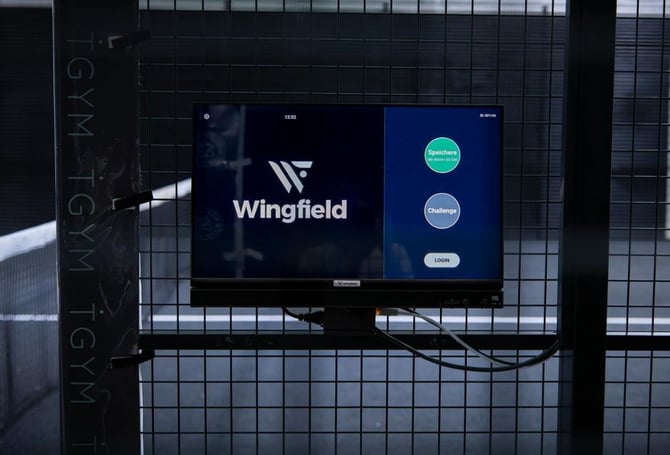
The Wingfield Court terminal combines touch display and PC in a powerful unit. This guide is for venue operators and installation teams mounting the unit on a Padel court cage. Set aside 20–30 minutes and have the included mounting kit ready.
In this article, you’ll learn:
- ✔ How to mount the Court Terminal to a Padel court
- ✔ How to connect the Court Terminal with the other devices (Quick link)
1. Attach the screen to the mounting plate
The mounting plate serves as the base for the entire bracket assembly. We recommend first attaching the screen to the mounting plate and then mounting the fully assembled unit onto the padel court. This makes the installation easier, faster, and more convenient.
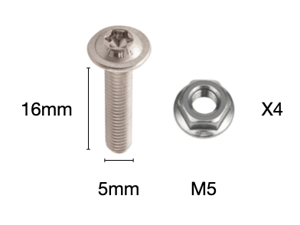
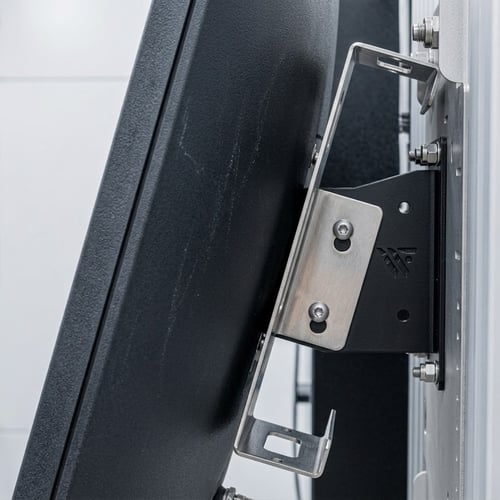
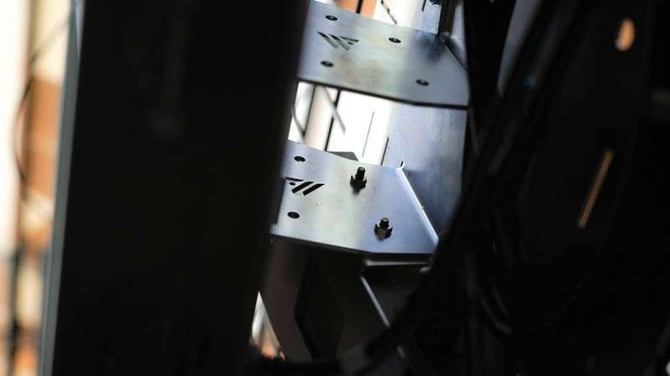
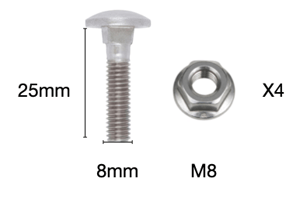
Position the mounting arm for the display on the plate and align the bolt holes. Fasten the arm with four M5 bolts (16 mm length, 5 mm diameter) from inside the court through the rail and mounting plate.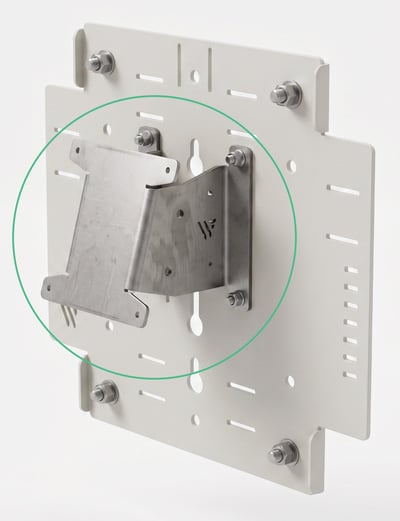
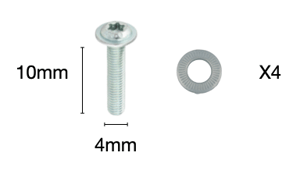
Position the display's rear mounting points onto the arm. Secure the display at the four main points using bolts (10 mm length, 4 mm diameter) with washers.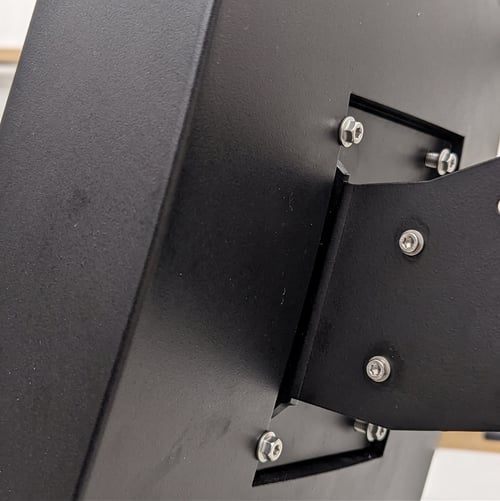
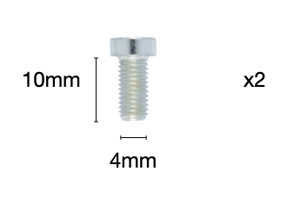
Now attach the mount for your PoE switch to the side of the mounting arm of the display using 2x bolts (10 mm length, 4 mm diameter).
💡 Tip: Choose the side of the POE mount based on the direction the power cable runs to the connection ports on the display — this keeps the wiring clean and avoids crossing it over the arm.
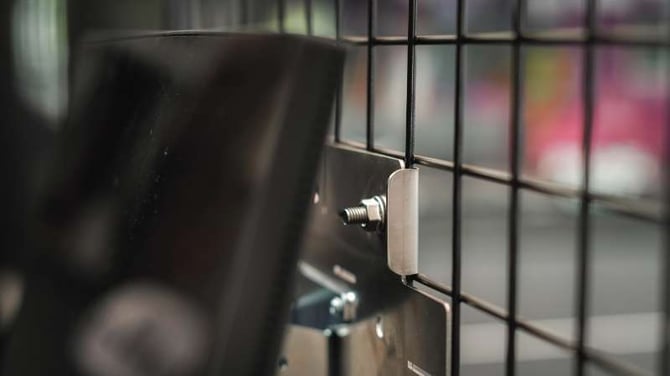
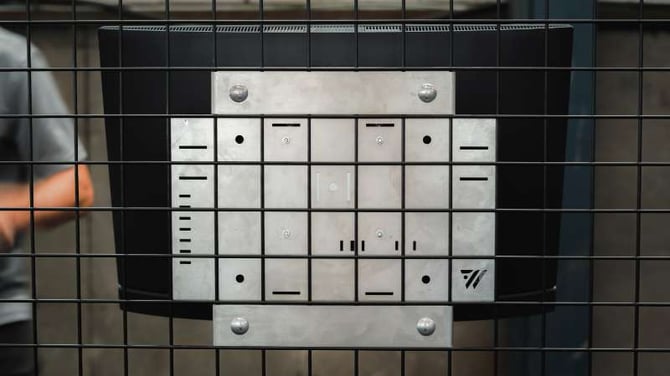
2. Attach the mounting plate with the screen to the padel court
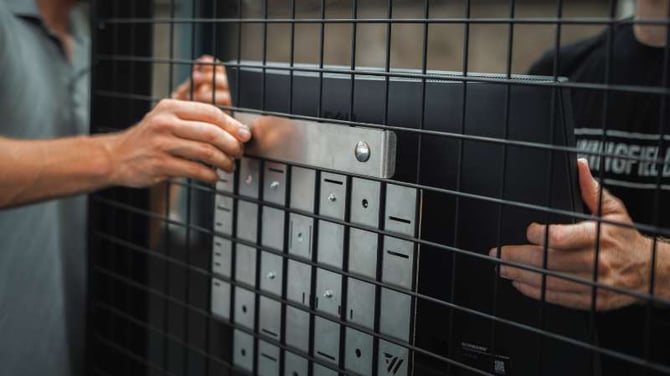
💡Tip: Grab a colleague to help you complete the next steps together.
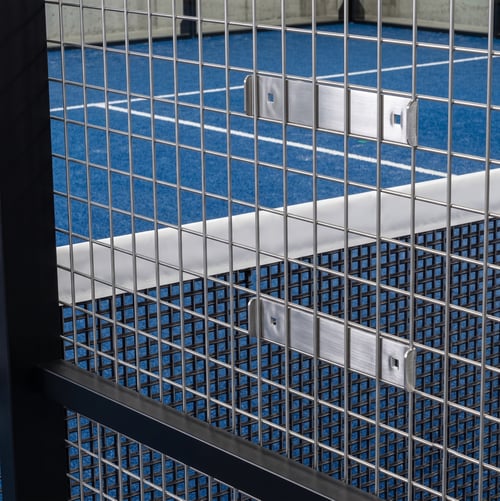
⚠️ Attention: Before tightening the bolts, make sure the mounting plate is level and properly aligned between the court bars.
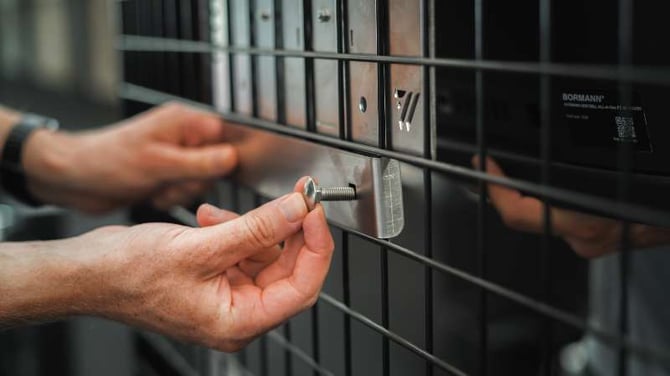
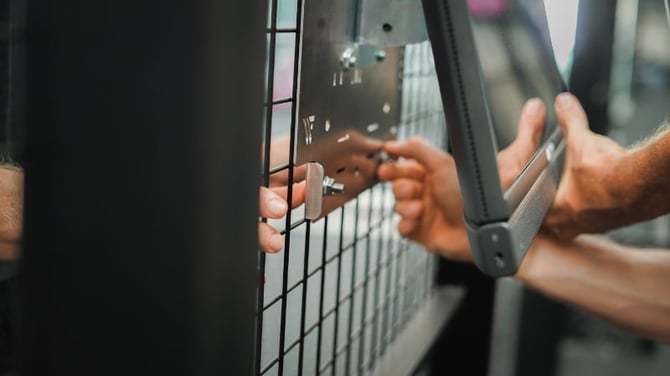
3. Connect the ports of the POE switch
Now insert the PoE switch into the dedicated mount that you previously attached to the screen’s mounting arm.
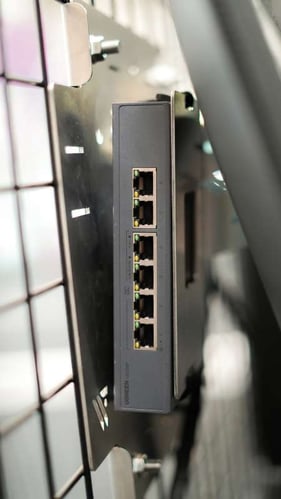
How many devices you connect to the PoE switch depends on your court setup and the internet connection you want. The switch has multiple ports, giving you flexibility. You have the following options:
- Connect your streaming camera(s): You can power up to two cameras through the PoE switch using an Ethernet cable (CAT6a or higher). Streaming cameras must be plugged into one of the PoE ports, since that port handles both power and data transfer.
- Connect the Court Terminal: Connect the switch and the Court Terminal using an Ethernet cable (CAT6a or higher). Use one of the switch's standard Ethernet ports for this connection.
- Internet connection via LAN (optional): If you're connecting your Wingfield court to the internet via LAN cable, this doesn't require a PoE port — a standard LAN port on the switch is sufficient.
⚠️ Caution: In a Wingfield AI Pro setup, only the streaming camera connects to the PoE switch — not the Dual Camera Module (DCM). The DCM connects directly to the dedicated DCM port on the display.
4. Connect the rear ports of the touch display
Now connect the cables on the back of the unit – it has three ports:
- 🛜 PoE switch – to connect with streaming cameras (and network)
- 🔌 Power – to power your whole system (incl. cameras)
- 👁️🗨️ Dual Tracking Camera Module (DCM) – only if you install a Wingfield AI Pro system!
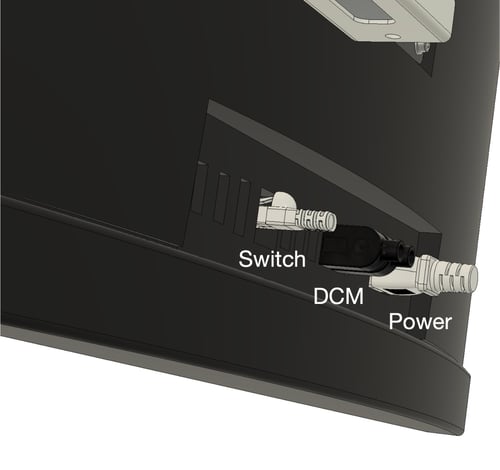
⚠️ Caution: Only connect cables while the unit is powered off, and plug each connector into its matching port.
Done! What's Next?🎉
Depending on your setup and the order in which you install the individual components, you can continue with one of the following guides:
- ➡️ Mounting Options for Streaming Camera – Padel Court
- ➡️ Mounting the Dual Camera Module - Padel Court (Wingfield AI Pro setups only)
Stuck on-site and not sure what to do next? We've got you covered!
📞 Service hotline: 🇺🇸 +1 929 395 1078 | 🇪🇺 +49 511 51525901
💬 WhatsApp: click here
📨 E-Mail: service@wingfield.io